How to Download and Use Your Etsy Digital Files
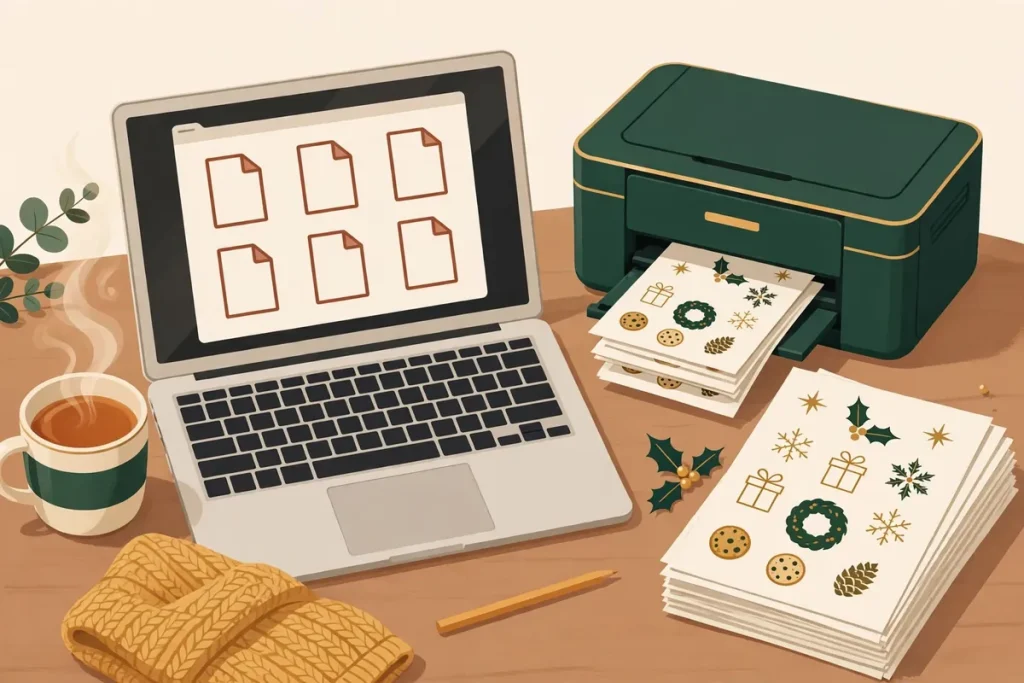
Downloading an Etsy digital file takes about a minute once you know where to look: sign in to the Etsy account you bought with, open Purchases and reviews, and click Download Files next to your order — your files stay saved in your account, ready to print or use straight away. Etsy’s own help centre documents the same steps in its guide, How to Download a Digital Item, and this article walks you through each step in plain language.
Buying a Digital Download Is Different — in a Good Way
When you buy a digital product on Etsy, nothing arrives in the post. There is no parcel to track and no delivery day to wait for. Instead, your files are ready almost as soon as payment goes through, and you can download, save, and print them whenever you need them. That is the appeal of instant downloads: choose a design in the evening, and print it at home a few minutes later.
The process looks a little different from a normal online order, and that catches first-time buyers out. People look for a download link in the wrong place, try to open a file on a phone that cannot unzip it, or worry something has gone wrong when it has not. This guide walks you through every step, from finding your purchase to printing a clean copy. Once you have done it once, the second time takes less than a minute.
Before You Start: What You Need
- An Etsy account. You need to be signed in to the account you used to buy the item. This is essential.
- A computer or laptop, if you can. Phones can download files, but computers handle ZIP files and printing settings much more easily.
- A PDF reader. Most devices already have one; free readers are widely available if yours does not.
- A printer, or a local print shop. A home printer suits most printables; a print shop helps for larger pages or thicker paper.
A Quick Note About Guest Checkout
If you checked out as a guest, read this carefully. Etsy still requires an account to access digital downloads, because your files live inside your account, not in a public link. Create an Etsy account using the same email address you used at checkout, or follow the instructions in your receipt email to claim your purchase. Once the purchase is linked to your account, your files will appear in the normal place described below.
Step by Step: How to Download Your Files
Step 1: Sign In to Your Etsy Account
Go to Etsy and sign in with the email address and password for the account you used when you bought the item. Signing in with a different account is the most common reason people cannot find a purchase, so double-check the email address if your order does not appear.
Step 2: Open Purchases and Reviews
Click your account icon, labelled You, at the top of the page. From the menu, choose Purchases and reviews. This page lists everything you have bought, with newest orders near the top. Find your order using the listing photo and shop name.
Step 3: Click Download Files
Next to a digital order, you will see a Download Files button. Click it, and Etsy will show the files included with that purchase. Some products have one file; others, like our 100+ Christmas Games Bundle, include several PDFs — in that case, three PDFs with the games, answer keys, and a host guide. Download each file in the list, not just the first one.
Tip: Download Everything in One Visit
While you are on the page, download every file attached to the order and save them together in one clearly named folder. It takes seconds now and saves confusion later, especially for products with separate answer keys, instructions, or bonus pages.
Step 4: Check Your Email Receipt as a Backup
Etsy also emails you a receipt after a digital purchase, with a link back to your download. It is a useful backup if you have closed the browser or switched devices. Check spam and promotions folders too, because receipts occasionally land there.
Finding and Opening Your Files
On a Windows or Mac Computer
Downloaded files go to your Downloads folder by default. Open it and look for a file ending in .pdf or .zip. Double-click a PDF and it should open in your reader, ready to read or print. Move files into your named folder straight away, before they get buried under newer downloads.
On a Phone or Tablet
On a phone, downloads appear in the browser downloads list or a Files app. PDFs normally open without trouble, but ZIP files can be awkward and printing controls are limited. If a file will not open properly on your phone, move to a computer for downloading and unzipping, then send yourself the finished PDF if you still want it on your phone.
How to Unzip a ZIP File
Sellers bundle larger products into a ZIP file — one compressed folder holding several files. On Windows, right-click the ZIP and choose Extract All. On a Mac, double-click it and a new folder appears beside it. Once extracted, open the individual PDFs inside as normal, and always work from the extracted files, not from inside the ZIP preview.
Printing Basics for a Clean Result
Most Ujolla printables are designed for US Letter paper, and most also work on A4 with the right setting. In the print dialog, choose Actual Size or 100% scale when a design must print at an exact size, such as templates you will cut around. For games, quizzes, and cards, Fit to Page is usually fine if your paper size differs.
Check three settings before you press print. First, confirm the paper size in the printer matches the paper you loaded. Second, choose colour printing for festive designs, because greyscale can flatten them. Third, run one test page before printing a full set, especially on thicker cardstock. If you do not own a printer, take the PDFs to a local print shop and tell the staff the paper size and whether you want cardstock.
Troubleshooting Common Problems
- I cannot find my purchase. You are probably signed in to a different account. Sign in with the checkout email and check Purchases and reviews again.
- I cannot find the email. Search for Etsy and check spam — and remember you do not need the email, because the Purchases page always has your files.
- The Download Files button is missing. Make sure payment has completed, then refresh the page from your account.
- The file will not open. It may still be inside a ZIP, or the download was interrupted. Download it again on a computer and extract it first.
- My print looks small or cropped. Recheck scale and paper size, then print a test page at Actual Size.
Still stuck? Our FAQs page answers the questions we hear most often, and you can reach us through our contact page. Tell us your order date and what device you are using, and we will help you get to your files.
Frequently Asked Questions
Sign in to the Etsy account you used at checkout, open Purchases and reviews, and click Download Files next to the order. Your files stay in your account permanently, so you can download them again whenever you need them.
You can, but a computer is much easier: phones struggle with ZIP files and give you limited print settings. Download and unzip on a computer first, then send the finished PDF to your phone if you want it there.
Usually the payment has not finished processing yet, or you are signed in to a different Etsy account than the one used at checkout. Check the email address, refresh the Purchases page, and the button should appear.
On Windows, right-click the ZIP and choose Extract All. On a Mac, double-click it and a folder appears beside it. Always work from the extracted files, not from inside the ZIP preview.
The print dialog scaled it to fit. Choose Actual Size or 100% scale for templates that must print at an exact size, and check that the paper size in the dialog matches the paper you loaded.
Conclusion
Downloading from Etsy is one of those things that feels confusing exactly once. After your first download you will know the route by heart — account, Purchases and reviews, Download Files — then save everything into one clearly named folder with a backup copy, and your printables are yours for good, ready to reprint whenever you need them.
Every Ujolla product is an instant download from our Etsy shop, so the design you pick tonight can be printed tonight. Start with a favourite — the 100+ Christmas Games Bundle is a wonderful first download — and if anything in this guide did not work for you, email us: we would rather help you reach your files than leave you stuck.